Publishing Details
Steam and Itch are the supported stores for now (see Prerequisites for the CLI tools each needs).
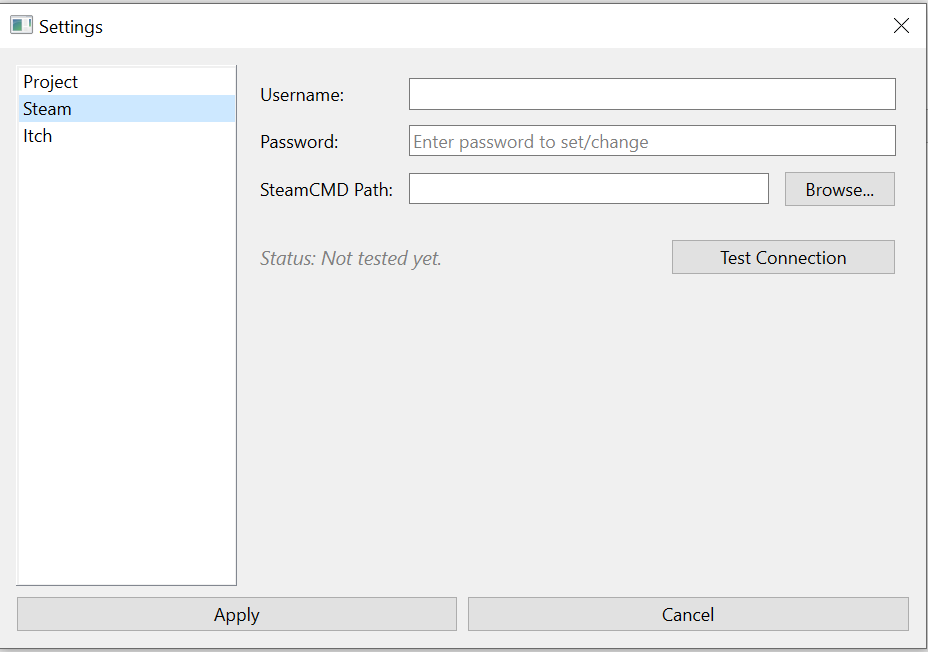
Authentication is required for both. Passwords and API keys are stored via keyring, never in the local database. Configure each store under File → Settings:
Steam
Authentication
Add your username, password, and the path to your local SteamCMD executable in Steam Settings. SteamCMD is used both for the publish step and for the in-app Test Connection check.
STEAMGUARD 2FA. If your account is protected by 2FA you need to confirm the login on the Steam app on each upload. Keep your phone near. This is the only supported 2FA flow.
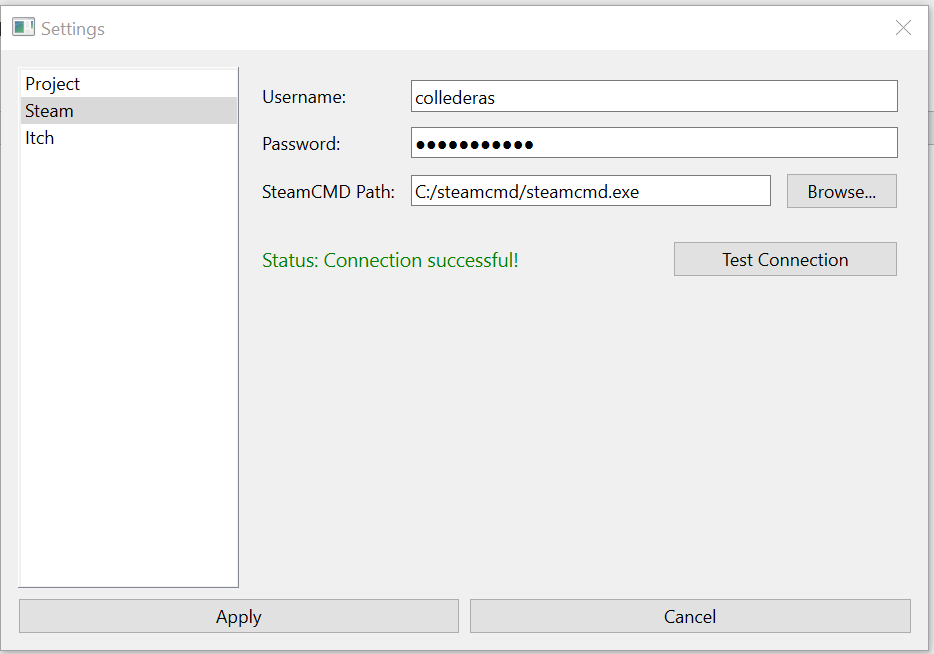
When the connection works (after you accept the login on your phone) you’ll see a confirmation:
Publishing Configuration
The Steam configuration dialog (Build List entry → Configure next to Steam) lets you specify the fields that end up in the vdf file: App ID, depot mappings (Depot ID + content folder), and which Steam authentication profile to use.
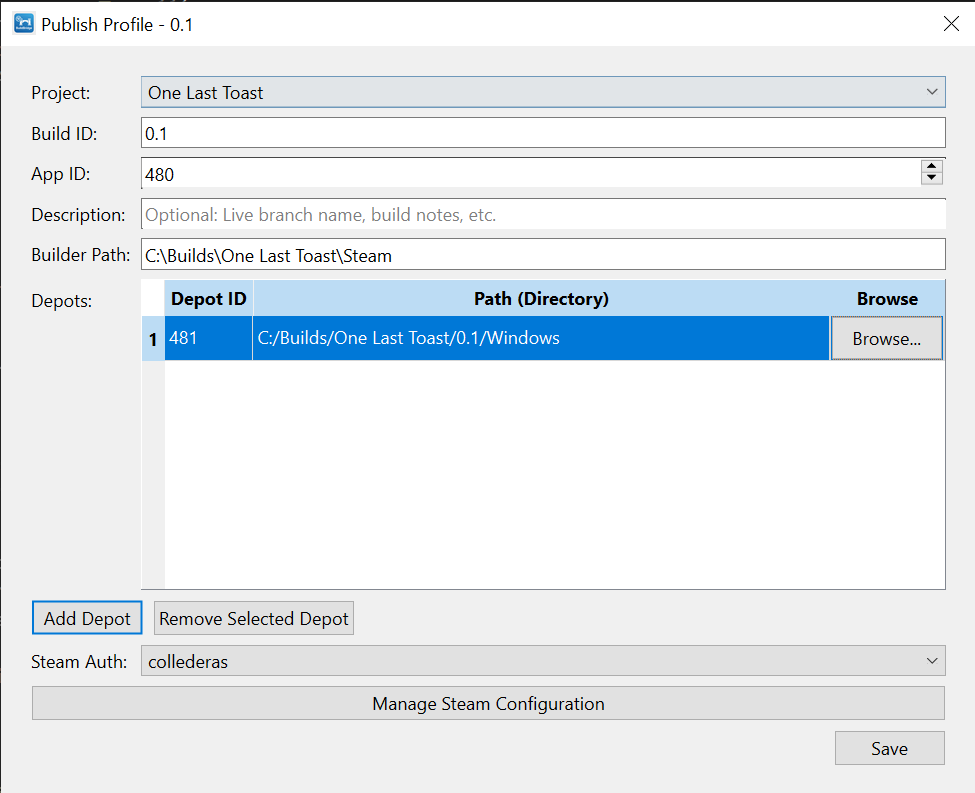
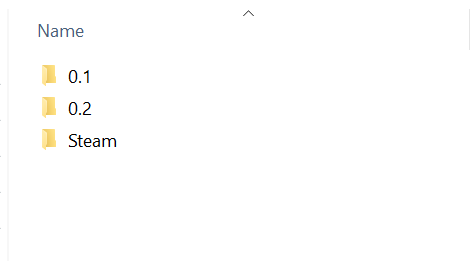
Build Bridge automatically creates the required vdf file (single-file approach, no separation for depots) and writes it, together with build logs, to an auto-generated
Steamfolder under your Project’s archive directory. This is managed for you, no configuration needed.
Itch
Authentication
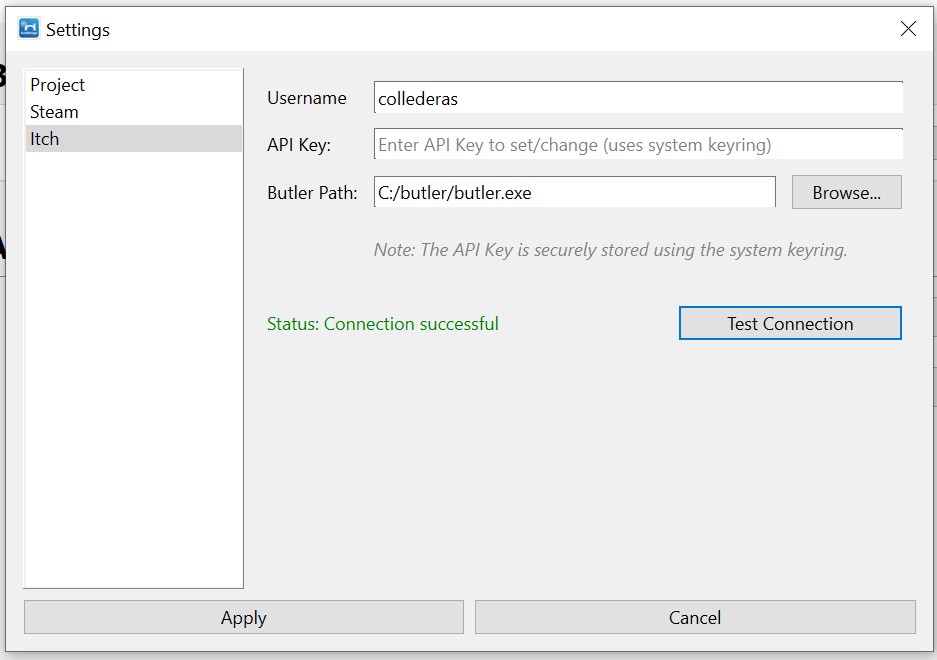
Itch needs your username and your API key. You can test the connection without butler (it’s a plain HTTP call), but butler is required for the actual upload, so point at it too.
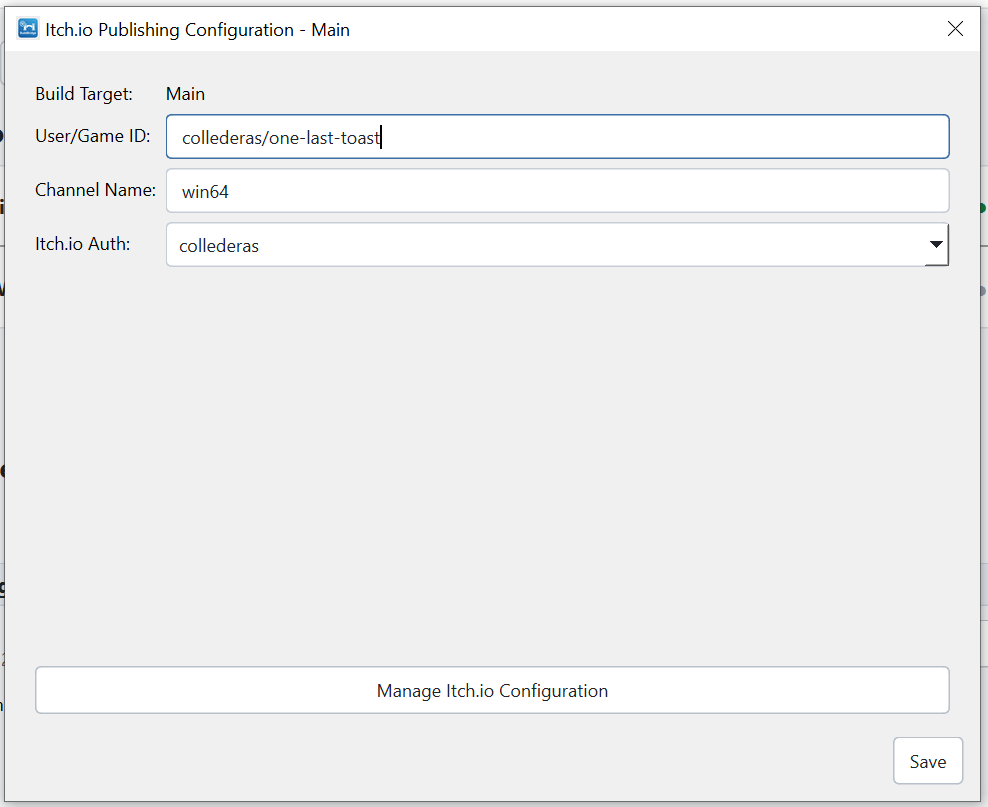
Publishing Configuration
The Itch configuration dialog (Build List entry → Configure next to Itch.io) lets you specify the fields that butler uses to publish the build on your game’s page.